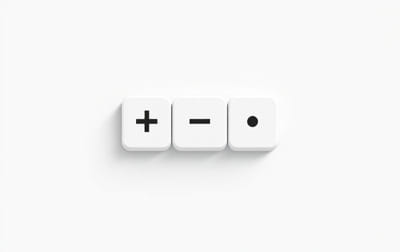
Keyboard Shortcut to Zoom Out A Simple Guide for Windows, Mac, and BrowsersZooming out allows you to reduce the size of content on your screen, giving you a wider view of documents, images, websites, or applications. Whether you’re trying to see a full page at once or reset your screen after zooming in too far, knowing the keyboard shortcut to zoom out is a fast and effective solution. This topic explains how to zoom out using keyboard shortcuts on different platforms like Windows, macOS, and popular software.
What Does Zoom Out Mean?
Zooming out decreases the scale of the display, making content smaller. This is useful when dealing with large documents, web pages, spreadsheets, or when working on graphic design projects. Instead of manually adjusting settings or using a mouse, keyboard shortcuts offer a quick way to control your view.
Keyboard Shortcut to Zoom Out on Windows
On a Windows PC, zooming out is commonly used across browsers, productivity apps, and the operating system itself.
Shortcut
- Ctrl + Minus (-)
Hold the Control key and press the minus (-) key to reduce the zoom level. You can press the shortcut multiple times to keep zooming out further.
Compatible Apps
-
Google Chrome, Mozilla Firefox, Microsoft Edge
-
Microsoft Office (Word, Excel, PowerPoint)
-
Adobe Acrobat Reader
-
PDF and image viewers
This shortcut helps especially when you want to get an overview of a document or web page.
Keyboard Shortcut to Zoom Out on Mac
For macOS users, the shortcut is similar to the one on Windows but uses the Command key instead.
Shortcut
- Command + Minus (-)
Press and hold the Command (â) key and tap the minus (-) key to zoom out.
Where It Works
-
Safari and other browsers
-
Preview app
-
Pages, Keynote, and Numbers
-
Many third-party macOS applications
This shortcut is consistent across most apps, making it easy to remember and use daily.
Zooming Out in Web Browsers
Web browsers are some of the most common places where users zoom in and out. Whether you’re reading an topic or editing a site layout, the zoom function helps control how content is displayed.
Windows Shortcut
- Ctrl + –
Mac Shortcut
- Command + –
This shortcut works in
-
Google Chrome
-
Mozilla Firefox
-
Microsoft Edge
-
Safari
-
Opera
To return to the default zoom level, use Ctrl + 0 (Windows) or Command + 0 (Mac).
Using Magnifier or Zoom Features on Windows and Mac
Sometimes users enable system-level zoom tools like Magnifier (Windows) or Zoom (Mac). These tools let you zoom the entire screen rather than just inside apps.
Windows Zoom Out via Magnifier
- Windows Key + Minus (-)
This shortcut decreases magnification if the Magnifier tool is active.
Mac Zoom Out via Accessibility Zoom
After enabling zoom in System Settings > Accessibility, use
- Option + Command + Minus (-)
This reduces the zoom level across the entire display.
Zoom Out in Microsoft Office Applications
In apps like Word and Excel, zooming out can help you see full pages or large spreadsheets more easily.
Keyboard Shortcut
There is no universal zoom out shortcut in Office, but you can use
-
Ctrl + Mouse Scroll Down (Windows)
-
Command + Mouse Scroll Down (Mac)
Alternatively, use the Ctrl + – or Command + – shortcut in apps that support it, or adjust the zoom slider usually found in the bottom-right corner.
Zoom Out in PDF Viewers
PDFs often contain detailed text and images, and zooming out helps to navigate multi-page documents.
Shortcut
-
Ctrl + – on Windows
-
Command + – on Mac
You can continue pressing the shortcut to reduce the view further. In Adobe Acrobat Reader, this works seamlessly.
Some readers also allow
-
Ctrl + 0 / Command + 0 to fit the document to screen
-
Zoom tools from the toolbar for more precise control
Zooming Out Without a Mouse or Touchpad
Not every user has access to a mouse or prefers to use one. In such cases, keyboard shortcuts provide a helpful alternative.
Use the keyboard combinations mentioned earlier to zoom out in apps and browsers. They’re especially useful on laptops or when navigating by keyboard is more convenient.
For touchscreen laptops or tablets, pinch gestures also work, but keyboard shortcuts are more precise.
Benefits of Using Zoom Out Shortcuts
Keyboard shortcuts save time and increase efficiency. Here are some reasons to use them
-
Speed No need to search through menus.
-
Convenience Especially helpful during presentations or screen sharing.
-
Accessibility Easier for users with limited dexterity or visual needs.
-
Focus Quickly change your view without breaking workflow.
Knowing how to zoom in and out helps keep your workspace adaptable to your preferences.
Troubleshooting If the Shortcut Doesn’t Work
If the zoom out shortcut doesn’t respond, consider these troubleshooting tips
-
Make sure the window is active and selected.
-
Try using the number row instead of the numeric keypad.
-
Check if another app or software has overridden the shortcut.
-
Restart the program or device.
-
Verify that your keyboard layout is set correctly.
You can also test the shortcut in a different app to see if it’s an app-specific issue.
Learning how to zoom out using keyboard shortcuts is a small skill that brings big convenience. Whether you’re using Windows or Mac, browsing the web, working on documents, or viewing images, zooming out allows you to take in more at a glance.
With simple combinations like Ctrl + – or Command + –, you can manage screen content without lifting your hands from the keyboard. Try using these shortcuts regularly, and you’ll find your workflow becoming faster and more efficient.


