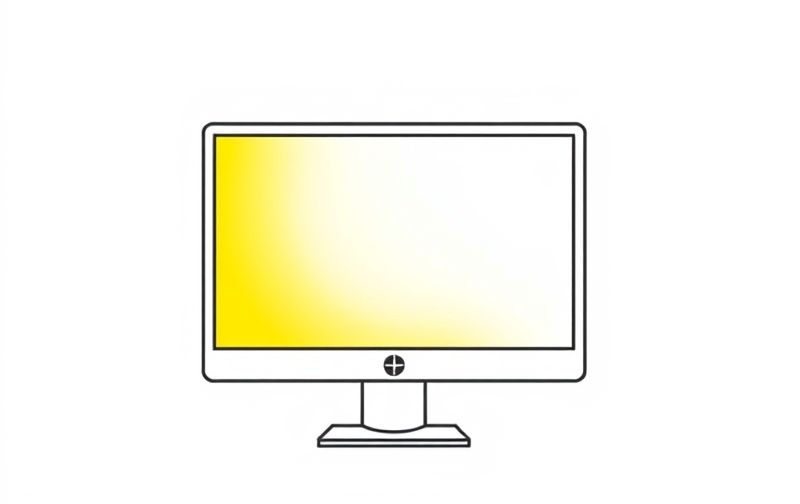
How to Lower Brightness on Windows A Step-by-Step GuideAdjusting your screen brightness on a Windows computer is an important aspect of managing your overall user experience. Whether you’re looking to save battery life, reduce eye strain, or simply make your screen more comfortable to look at, knowing how to adjust the brightness on your Windows device is crucial. This guide will show you different methods to lower your screen brightness on Windows devices.
Why Lowering Screen Brightness Matters
Before we dive into the how-to, let’s briefly discuss why adjusting your screen brightness is important.
-
Eye Comfort A bright screen in a dimly lit room can cause discomfort and eye strain. Lowering the brightness can make viewing more comfortable, especially when working for extended periods.
-
Battery Saving On laptops, screen brightness is one of the key factors that affects battery life. Lowering the brightness can help extend your device’s battery, making it last longer between charges.
-
Better Sleep Bright screens can interfere with your sleep patterns, especially if you’re using your device before bed. Reducing brightness, especially in the evening, can minimize this disruption.
Methods to Lower Brightness on Windows Devices
Whether you’re using a desktop or laptop, there are several ways to adjust your screen’s brightness. Here’s how you can do it
1. Using the Quick Settings Menu (Windows 10/11)
The easiest way to adjust brightness on Windows is through the quick settings menu. This method works on both Windows 10 and Windows 11.
For Windows 10
-
Click on the Action Center icon at the bottom-right corner of your screen (next to the clock).
-
In the Action Center, you’ll find a Brightness slider. Move it left to decrease the brightness.
For Windows 11
-
Click on the Action Center icon in the taskbar.
-
Look for the Brightness slider and adjust it as needed.
This method is quick and convenient, especially when you need to make immediate adjustments.
2. Adjusting Brightness via Settings (Windows 10/11)
If you prefer to make adjustments through the settings menu, this method will be ideal for you. Here’s how to adjust brightness through the display settings.
For Windows 10
-
Right-click on the Start menu and select Settings.
-
Click on System and then Display.
-
Under the Brightness and color section, use the Change brightness slider to lower the brightness.
For Windows 11
-
Right-click the Start menu and open Settings.
-
Navigate to System and select Display.
-
Scroll down to the Brightness and color section, where you’ll see a slider to adjust the brightness.
This method is more detailed and lets you control brightness settings in a central location.
3. Using the Keyboard Shortcuts (Laptops)
Many laptops come equipped with dedicated keys to adjust screen brightness quickly. These are often located on the function keys (F1, F2, etc.).
-
Look for the brightness symbols (usually a sun icon) on the function keys.
-
Hold the Fn (function) key and press the brightness down key to decrease the screen brightness.
This is a fast and efficient way to adjust the screen brightness without opening any settings or menus. However, not all laptops have this feature, so be sure to check your laptop’s user manual for more details.
4. Adjusting Brightness Through Graphics Control Panel
If your PC is equipped with specific graphics hardware (such as Intel, AMD, or NVIDIA), you can use their dedicated control panels to adjust screen brightness.
For Intel Graphics
-
Right-click on the desktop and select Graphics Properties.
-
In the Intel Graphics Control Panel, select Display.
-
Adjust the Brightness slider to your preferred level.
For NVIDIA Graphics
-
Right-click on the desktop and choose NVIDIA Control Panel.
-
Under the Display section, select Adjust desktop color settings.
-
Use the Brightness slider to lower the screen brightness.
For AMD Graphics
-
Right-click on the desktop and select AMD Radeon Settings.
-
Navigate to the Display tab.
-
Adjust the Brightness slider as needed.
Using the graphics control panel gives you additional display customization options, making it a great option for users who want more control over their screen settings.
5. Using Third-Party Apps
For more control over your brightness settings, you might want to consider third-party applications. These tools often come with additional features, such as automatic adjustments based on time of day or ambient light conditions.
-
f.lux f.lux is a popular app that adjusts your screen’s brightness and color temperature based on the time of day. It can reduce blue light exposure, making it easier on your eyes, especially at night.
-
Windows 10/11 Brightness Slider This app adds a brightness slider to your taskbar, making it easy to adjust brightness on the go without opening any menus.
These third-party apps are useful if you want more flexibility or advanced features for managing screen brightness.
Troubleshooting Brightness Issues on Windows
If you’re having trouble adjusting the brightness on your Windows PC, it might be due to various issues. Here are some troubleshooting tips
1. Brightness Controls Not Responding
If the brightness slider isn’t working, it may be due to outdated or missing drivers. Try these steps to fix the issue
-
Update Your Display Drivers Open Device Manager, expand the Display adapters section, right-click on your graphics card, and choose Update driver. Alternatively, visit the manufacturer’s website to download the latest drivers.
-
Reinstall Graphics Drivers If updating doesn’t work, you may need to reinstall your graphics drivers. Right-click on your graphics card in Device Manager, select Uninstall, and then restart your PC. Windows will automatically reinstall the appropriate drivers.
2. Brightness Option Missing
If you don’t see the brightness control in the Settings menu, it could be due to your display driver or hardware configuration. Here’s how to fix it
-
Ensure that you have the correct display drivers installed for your monitor or laptop screen.
-
Check for system updates to ensure your Windows version is up to date.
-
In some cases, your device may require a specific update from the manufacturer for the brightness control to work properly.
Tips for Managing Screen Brightness
-
Adjust Brightness Based on Lighting Conditions If you’re using your PC in a brightly lit room, you may need to increase the brightness. In a dim room, lowering the brightness can help reduce eye strain.
-
Use Night Mode Many Windows devices offer a night light feature that reduces blue light exposure, which can be helpful for nighttime use. This can also complement your brightness adjustments for better comfort.
-
Consider a Monitor with Built-in Brightness Controls If you’re using an external monitor, many modern monitors come with built-in brightness controls. Check your monitor’s menu system to adjust the brightness directly.
Conclusion
Lowering the brightness on your Windows PC is a simple yet effective way to improve comfort and reduce eye strain. Whether you’re using the built-in settings, keyboard shortcuts, or third-party apps, there are several methods to adjust your screen brightness based on your needs. Regularly adjusting your brightness can also help conserve battery life on laptops and make your overall computing experience more pleasant. By following the steps in this guide, you should be able to find the optimal brightness setting for your device.